Mammoth Money — a guide for the household
Mammoth Money keeps track of what a household has, where its money went, and whether the month is on track. You bring in the files your bank already gives you — a file of transactions, or a statement — and the app does the counting.
There is no bookkeeping in it. Nothing has to be balanced, reconciled or closed. You bring in a file, you sort what is new, and the numbers follow.
The pictures in this guide come from a made-up household called Maple Street. Every name, balance and transaction in them is invented. The newer screens have no picture yet; the words are what the app says.
Contents
- Getting started
- The menu
- Home
- Accounts
- One account
- Bringing in a file
- Statements
- Transactions
- New
- Letting AI help
- Budget
- Net worth
- Something you own with somebody else
- A loan or a mortgage
- Insights
- Subscriptions and standing charges
- Settings
- When the numbers disagree
- Keyboard shortcuts
- The words the app uses
Getting started
Where it is: www.mammothmoney.ca, in any current browser. It works on a phone, but sorting transactions is easier on a laptop.
Signing in
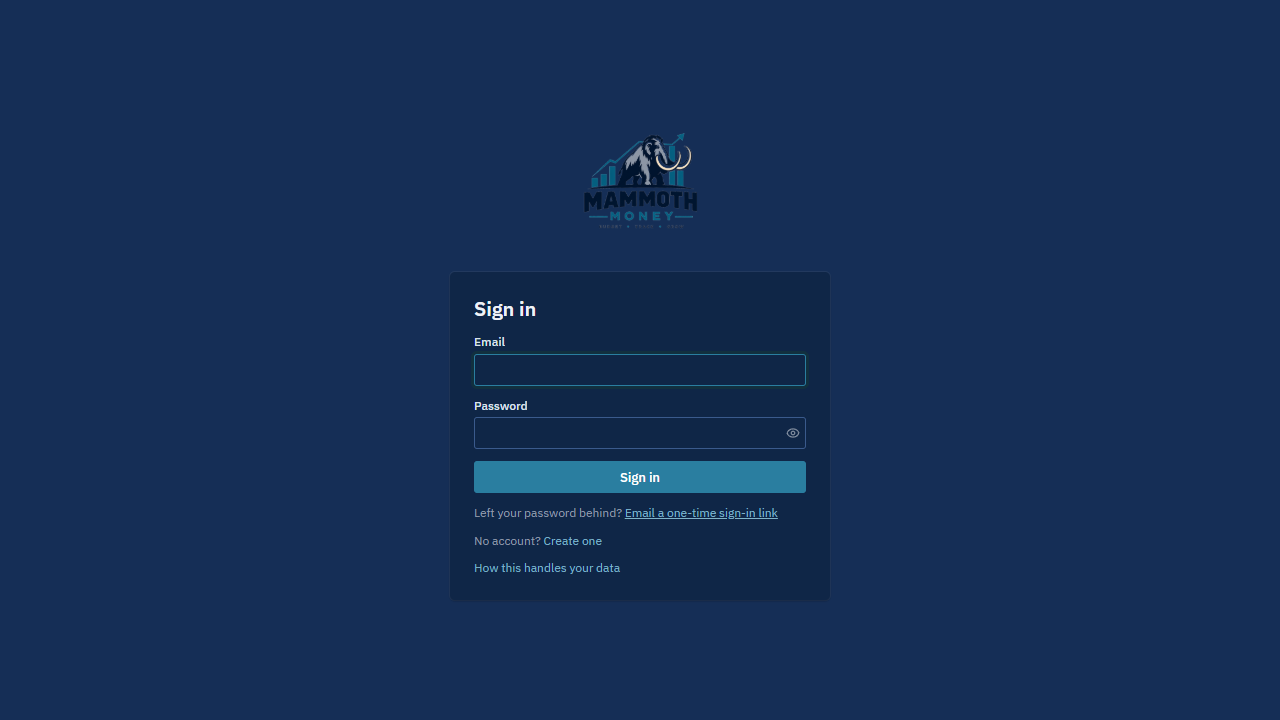
- Enter your email address.
- Either type your password and press Sign in, or press Email a one-time sign-in link and open the link in your inbox.
If somebody invited you to their household, open the invitation email first — that is what puts you in the household. If you are starting your own, press Create one and follow the three questions.
Tip: The one-time link is the easy way in on a phone. It signs you in without a password.
Your first five minutes
- Add an account. Accounts → Add account. It asks three things: what to call it, what kind it is, and which bank. Nothing else is needed.
- Bring in a file from that bank. Everything else in the app comes from this — the balance, the spending, the net worth.
- Sort what came in. Home shows how many transactions are waiting. Pressing Sort what's new takes you to them.
The menu
| Item | What it is for |
|---|---|
| Home | Where you start. What is worth knowing today. |
| Accounts | What each account holds, and how current it is. |
| Transactions | Every transaction, with filters and search. The badge counts what still needs a category. |
| Budget | The plan for the month, and how it is going. |
| Net worth | Everything owned minus everything owed, and what each loan is costing. |
| Insights | Where the money went, over months rather than days. |
| Settings | Categories, merchants, rules, tags, household, privacy. |
The bottom of the menu holds the light/dark switch, your name, and Sign out.
Home
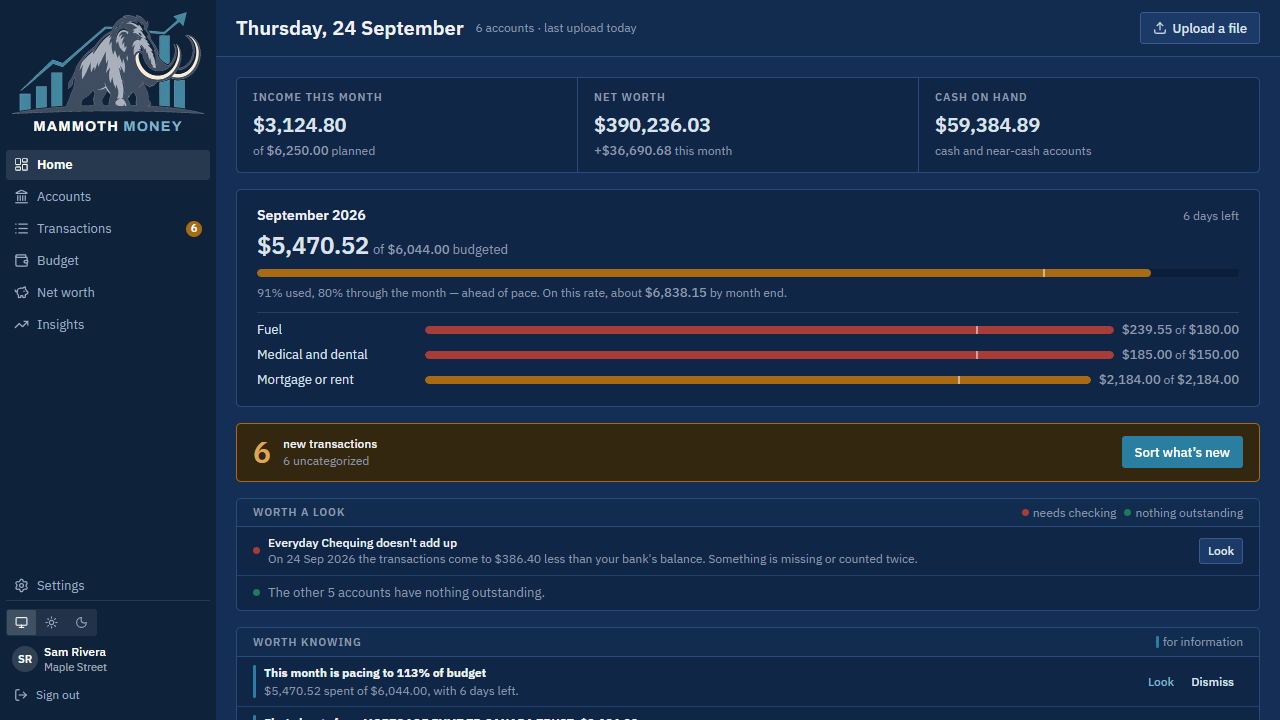
What you'll see
- Three figures across the top: what came in this month, what the household is worth, and how much of that is cash you can reach.
- This month's budget, with a bar for the month's pace and the categories furthest from plan.
- What's new — how many transactions are waiting for a category, with Sort what's new.
- Worth a look — anything that needs you: an account with nothing in it yet, a balance that has gone out of date, a difference between your bank and the transactions.
- Worth knowing — quieter notes: a first charge from a new merchant, the month's pace, a subscription that changed price. Each can be dismissed.
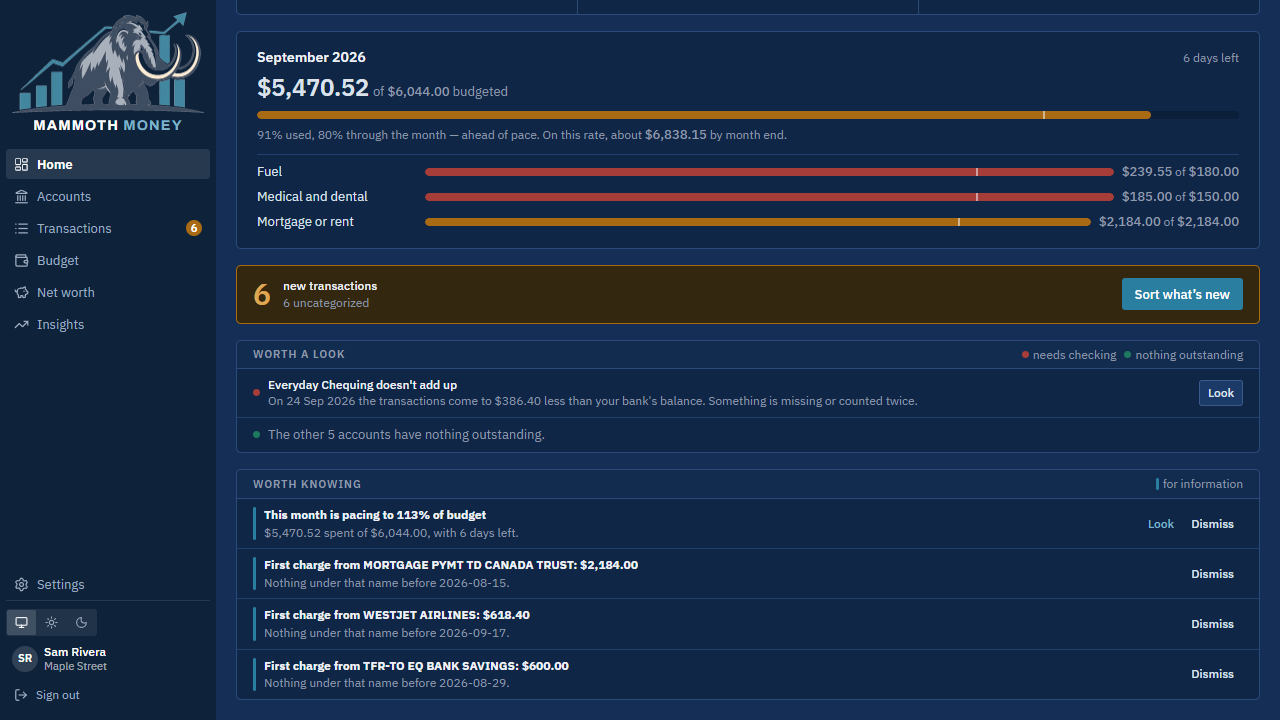
Tip: Upload a file sits in the top right of Home, Accounts and every account page. You never have to go looking for it.
Accounts
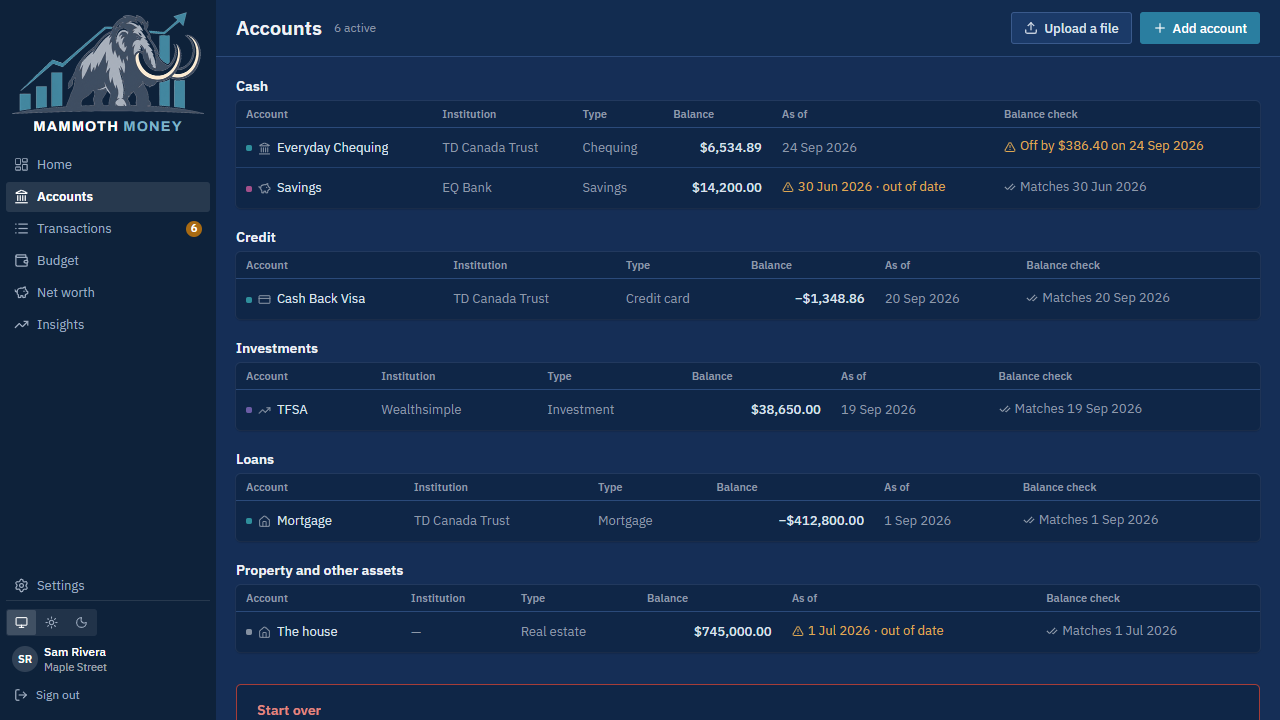
Accounts are grouped the way you'd describe them out loud: cash, credit, investments, loans, property.
| Column | What it means |
|---|---|
| Balance | What you own of it. For an account you bring files into, this is your bank's own figure — unless you share the account, in which case a line underneath says so: 50% of $800,000.00. |
| As of | The day that figure is from. An amber out of date means the account has gone longer without a balance than it is expected to — see below. |
| Balance check | Whether the transactions agree with the bank's figure on that date. A dash means there is nothing to compare: everything the account holds came from a statement, which states its own balance. |
How to: add an account
- Press Add account.
- Give it a name, choose the kind (chequing, credit card, investment, property…), and name the bank.
- Press save. Everything else — tax treatment, credit limit, interest rate — is under More options and can wait.
Tip: A house, a car or anything else you simply want counted is an account too. Give it a value and it will be included in your net worth.
An account in another currency
Say so when you add it: near the top of the form, Currency CAD · change. Everything in the account is then held in that currency, and the rate you state on Net worth turns it into your own money wherever a total adds it to something else.
It is fixed after that, because every figure in the account is in that currency and relabelling it would quietly reinterpret all of them — except for the one case where the app had it wrong from the start. If you created a US account before setting the currency and have been uploading to it since, open the account and use this account is actually in another currency under Settings. Every figure stays exactly as it is, on the same days; what changes is what they are counted as, here and in every total that adds this account to another. Do it only if the amounts really were always in the other currency.
How often a balance is expected
Some accounts are updated once a quarter, or once a year, and calling those out of date for most of the year is a warning about the calendar rather than about the account.
An account kept by its statements works this out for itself: the next one is due a period after the last one ended, so a lender who writes once a year is not late in February.
For everything else, Expect a new balance under More options says how often you give it a figure. It starts at whatever that kind of account usually is — yearly for property, every three months for investments, monthly for the rest — so most accounts need nothing. Do not tell me is there for the ones with no rhythm at all; a warning you can never act on is one that teaches you to ignore the others.
One account
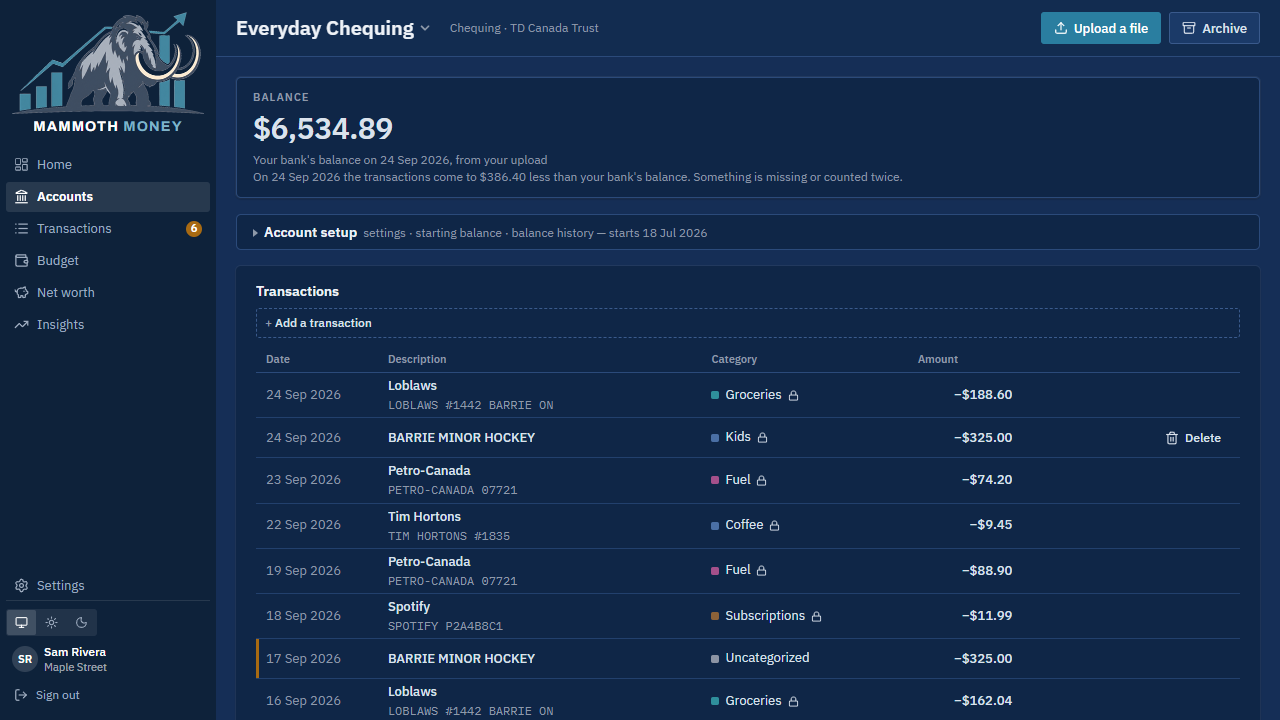
The top says what the account holds, where that figure came from, and — if they disagree — what the transactions come to instead.
Two buttons sit at the top right: Upload a file, for a file of transactions, and Add statements, for PDFs.
- Account setup folds away the things you touch twice a year: settings, the starting balance, loan terms if it is a loan, and the history of balances.
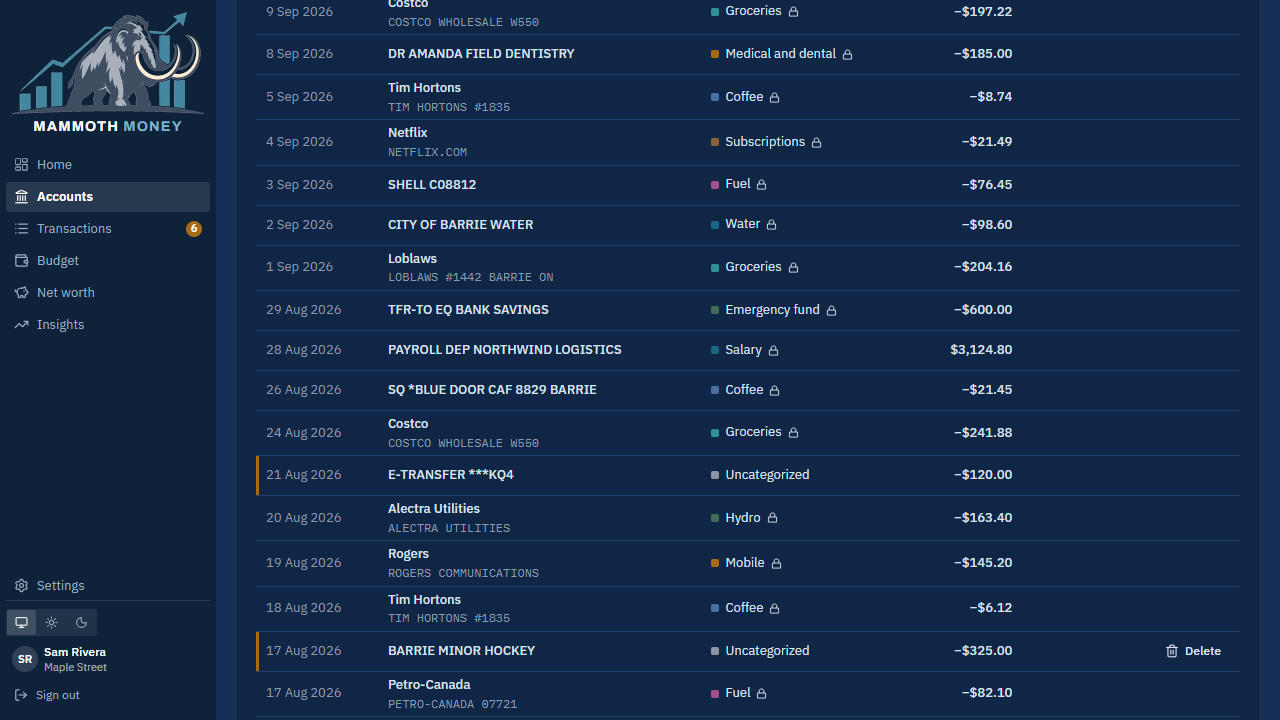
- Transactions lists this account's own rows, newest first, with + Add a transaction for anything you paid in cash.
At the bottom are Statements — every statement this account has recorded — and then every upload it has had:
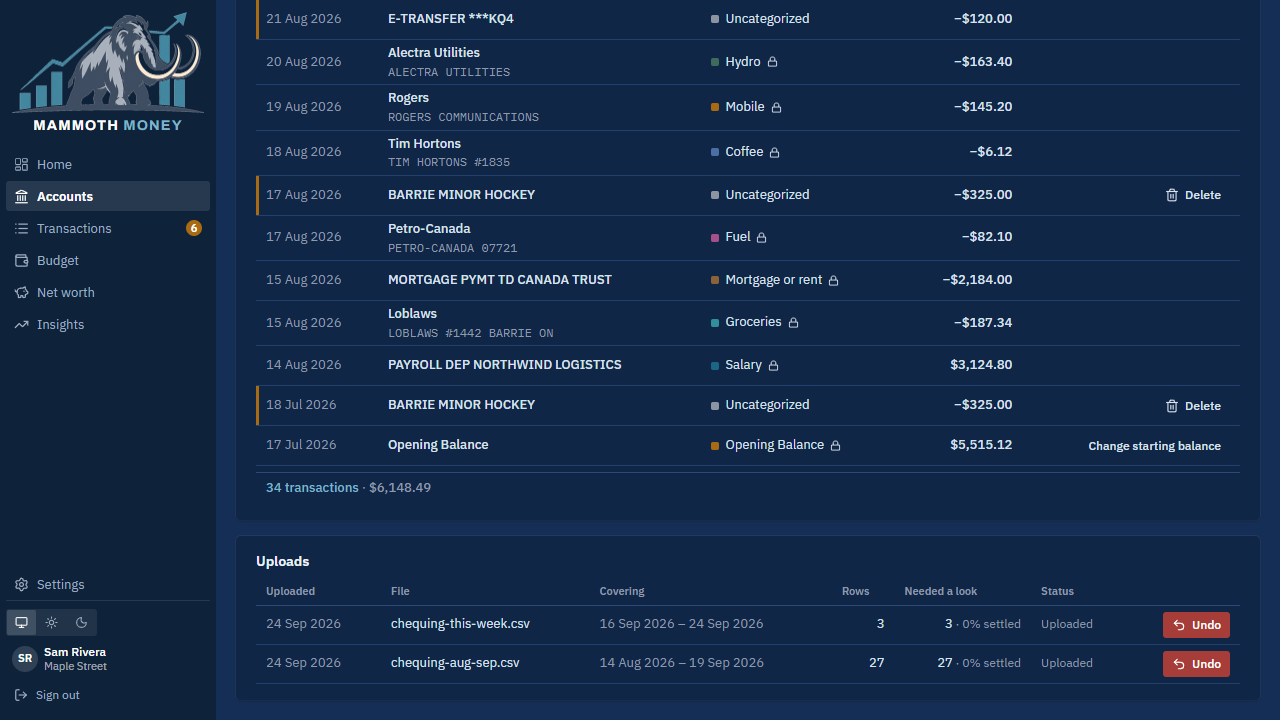
Each upload row shows the file, the dates it covered, how many rows it brought in, and Undo, which removes that file's transactions entirely.
Bringing in a file
This is the one thing the app asks you to do regularly. Download a file from your bank and give it to the app. Two kinds go in, and the app tells them apart by what they are — you never have to say which is which.
| What you have | What happens |
|---|---|
| A file of transactions — CSV, OFX or QFX | Uploaded, and every row becomes a transaction. |
| A statement — a PDF | Read on your device for the balance it states. The file itself is never sent anywhere. |
A statement is how you keep an account your bank gives no transaction file for — an investment account, a mortgage. Statements covers that in full. The rest of this section is a file of transactions.
How to: bring in a file of transactions
Press Upload a file (Home, Accounts, or the account itself).
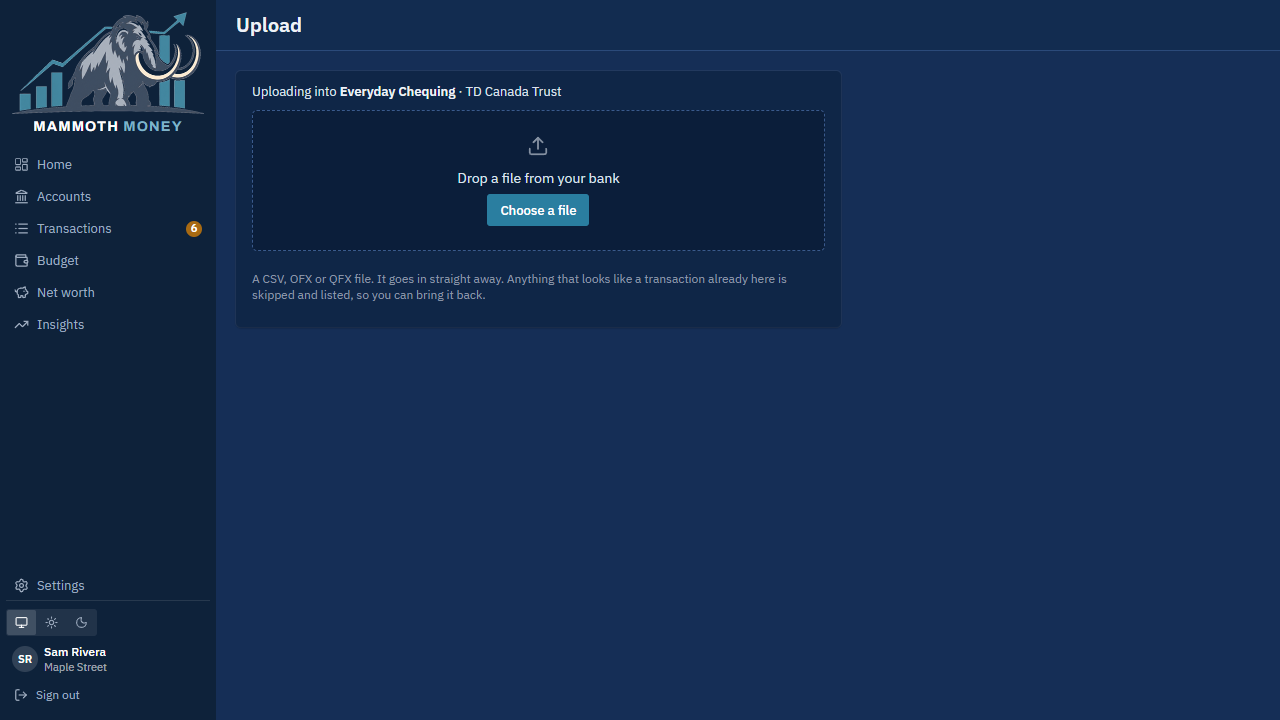
Check the account named at the top, then press Choose a file or drag the file onto the box.
It goes straight in. When it finishes you get one line saying what happened:
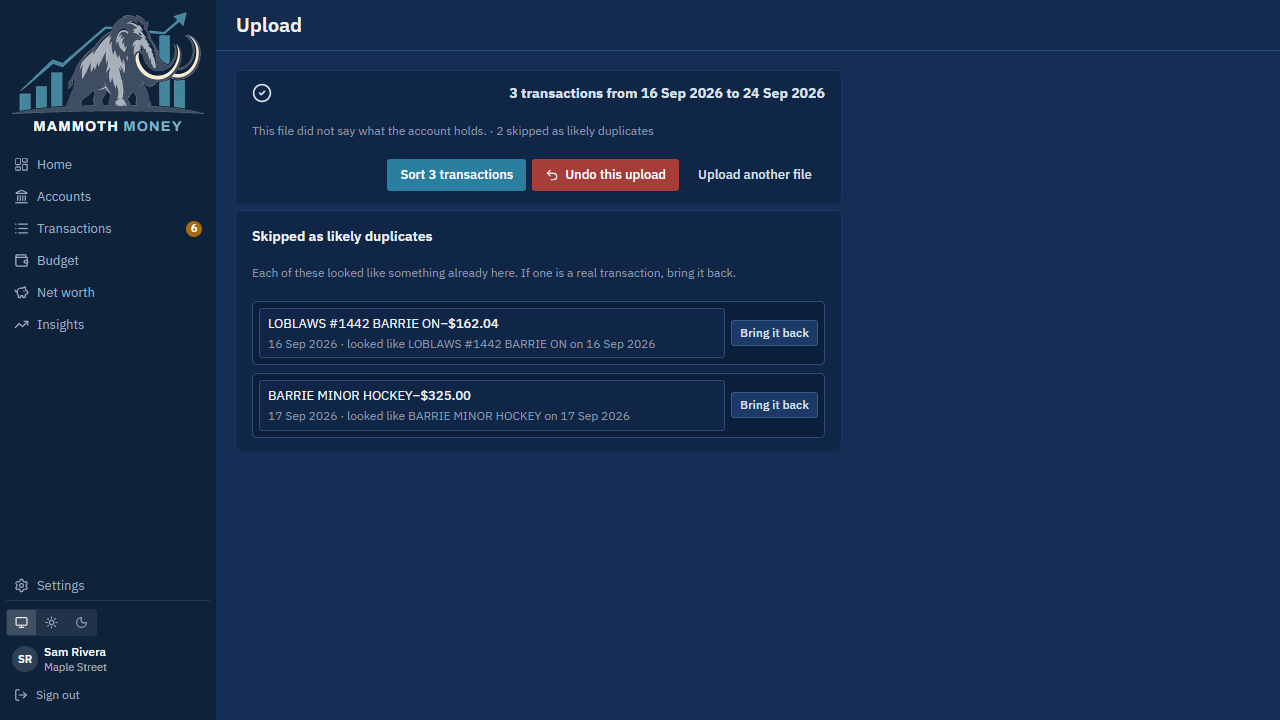
3 transactions from 16 Sep 2026 to 24 Sep 2026 · Balance $6,534.89 as of 24 Sep 2026 · 2 skipped as likely duplicates.
Press Sort 3 transactions to categorise what arrived, or Upload another file to carry on.
Tip: Undo this upload removes everything that file brought in, whenever you notice — that is what makes uploading safe to try.
Anything already here is skipped
If the file overlaps one you uploaded before, the repeated rows are skipped rather than doubled — and listed, so you can check:
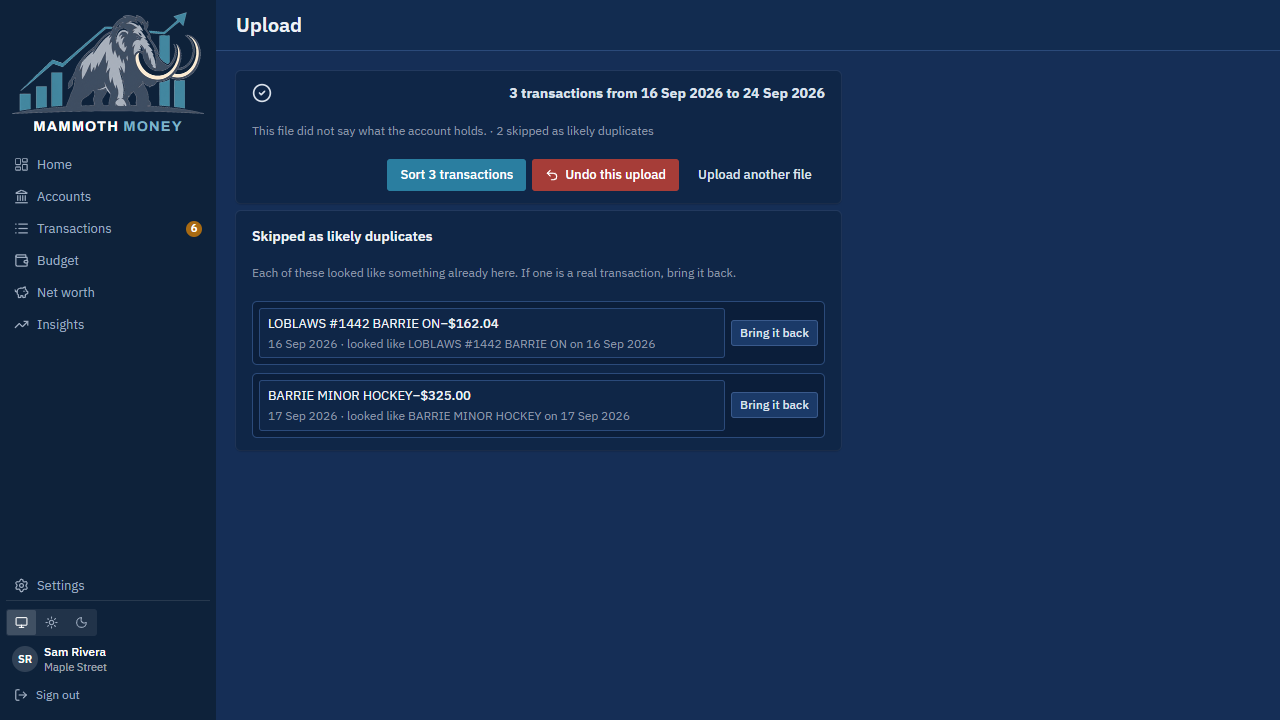
Each says what it looked like. If one is genuinely a separate purchase, Bring it back.
An upload that did not finish
If the tab was closed or the connection dropped mid-way, the file waits:
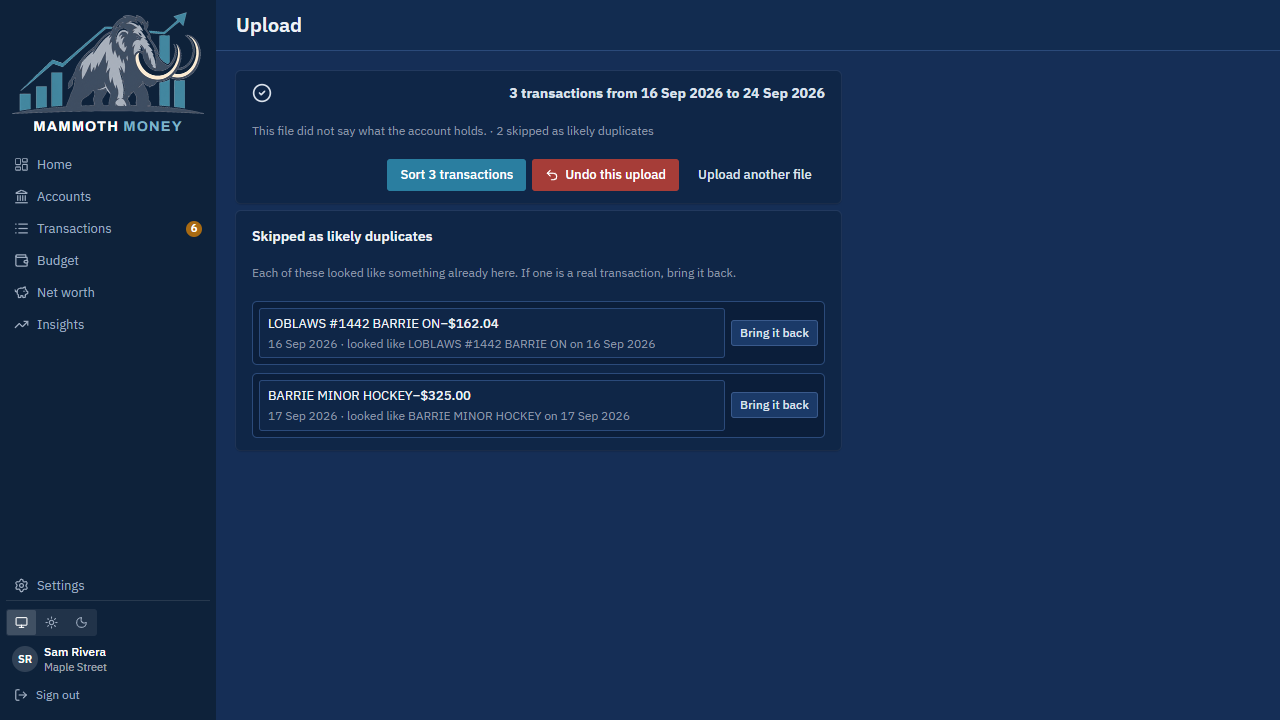
Bring it in finishes the job; Discard it throws the file away. Nothing was imported in the meantime.
A bank the app has not seen before
The first CSV from a new bank asks which column is the date, which is the amount, and which is the description, with your file shown beside the result so you can check it before anything is imported. Every later file from that bank skips the question.
OFX and QFX files never ask: they label their own fields.
Statements
Some accounts never give you a file of transactions. An investment account sends a monthly statement; a mortgage sends one letter a year. A statement is how those accounts stay current.
A statement is read on your device. The PDF is opened in your browser, the figures are found there, and the file is not uploaded. Only the figures you choose to record leave the page.
How to: record a statement
On the account, press Add statements — or drop the PDF on the upload screen, which recognises it as a statement and reads it there instead of uploading it.
The app reads what it finds and lists one row per statement. A single file often holds several: a year of monthly statements downloaded in one go is one file and twelve rows here.
Column What it says Statement The file it came from. As of The day the period ends. Ending balance What the statement says the account held on that day. Money in or out What crossed the account's boundary in the period — money you put in, money you took out. Everything readable is ticked. Untick anything you would rather not record, then press Record 2 statements.
Two statements for the same month in one go keep the first, and say so.
What "money in or out" brings with it
Money that crossed the account's boundary becomes a transaction, so the chequing side has something to pair with: a contribution to an RSP appears on the RSP as money in, pairs with the withdrawal from your chequing account, and the pair is a transfer rather than spending.
Money that moved inside the account — a fund switch, growth, a distribution reinvested — is the account's own return. It stays in the balance and becomes no transaction at all.
The summary after recording says how many came in and how many paired.
Keeping the account's number
If the account has no number yet and every statement in the file agrees on one, the app offers to keep its last four characters. Say yes, and a statement for a different account dropped here later is refused instead of recorded.
When a statement is not recorded
It will say which of these it is, and what to do next.
| What it says | What it means |
|---|---|
| There's no text in this PDF | It is a scan — a picture of a statement. Nothing can be read off it. |
| This isn't a statement the app can read yet | A layout the app does not know. Record its balance by hand under Balances, or, if your household has AI usage on, press Read it with AI. |
| Its balances couldn't be found on it | A statement from a bank the app knows, in a shape it did not expect. |
| Its balances don't add up as read | What it read does not come to the closing figure, so none of it is trusted. |
| It's in a different currency from this account | |
| This is a statement for a different kind of account | A mortgage statement belongs on the mortgage, an investment statement on the investment. |
| Its principal doesn't add up | A lender's statement where the opening principal, the amount repaid and the closing principal disagree. One of the three was read off the wrong line, so none of them is kept. |
| It is for account X, and this account's number is Y | Either the file is on the wrong account, or that number is wrong under Account setup. Both are shown, because it is as often the one as the other. |
A file whose statements were all refused for the same reason says it once, not twelve times.
A month you have already recorded
A later file is not automatically a better reading, so nothing is replaced quietly. Both figures are shown — what is held, and what this one says — and you choose Replace it or Keep what is held.
Undoing one
Under Statements on the account page, every recorded statement has Undo. It takes the balance and anything that statement brought in with it. A balance was only ever that statement's claim, and so were the movements read off it.
What a statement does to "out of date"
An account kept by its statements is judged by months, not days: it is out of date once a later month has ended and that month's statement has not arrived. Counting days would call an investment account out of date for half of every month, over a figure nobody has been sent yet.
And a statement that covered longer than a month sets its own pace. A mortgage lender writes once a year, so the next letter is not due for a year — the account stays current in the meantime rather than complaining every month about post nobody is owed.
Transactions
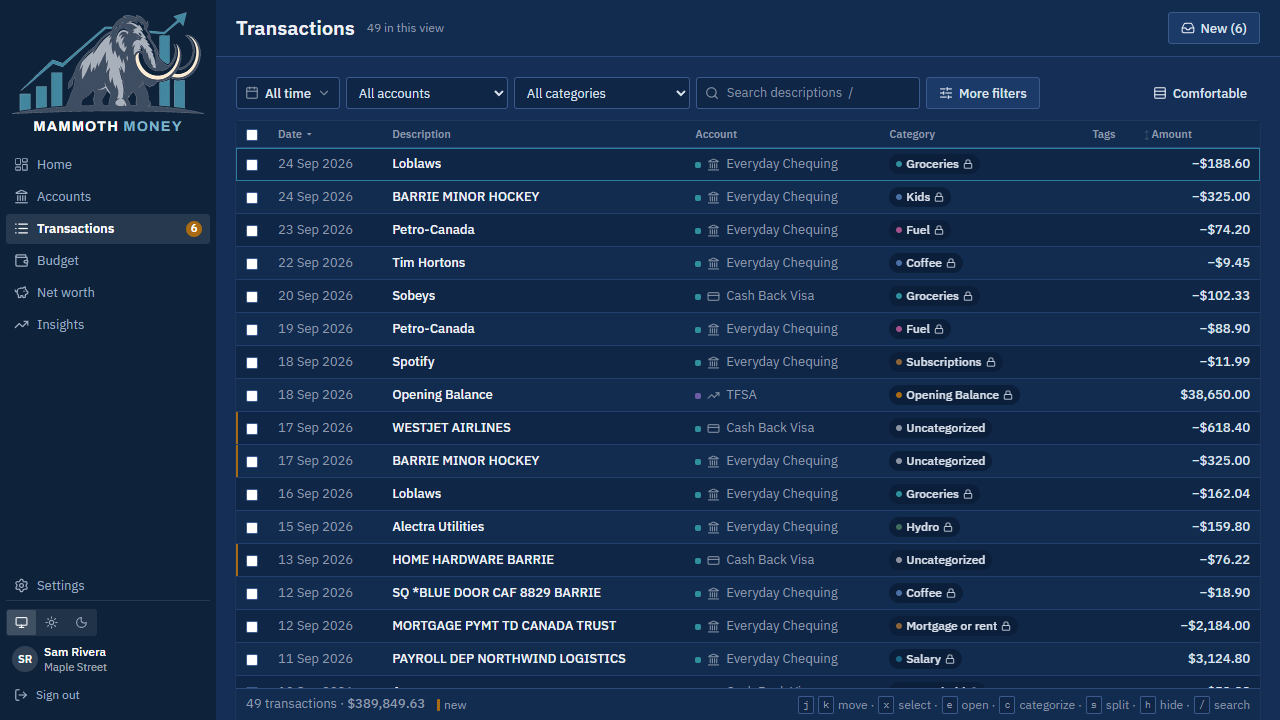
Everything, newest first. The bar at the top filters by date, account and category, and searches descriptions. The amber marks down the left are transactions that arrived recently.
How to: give a transaction a category
Hover the row and click its category.
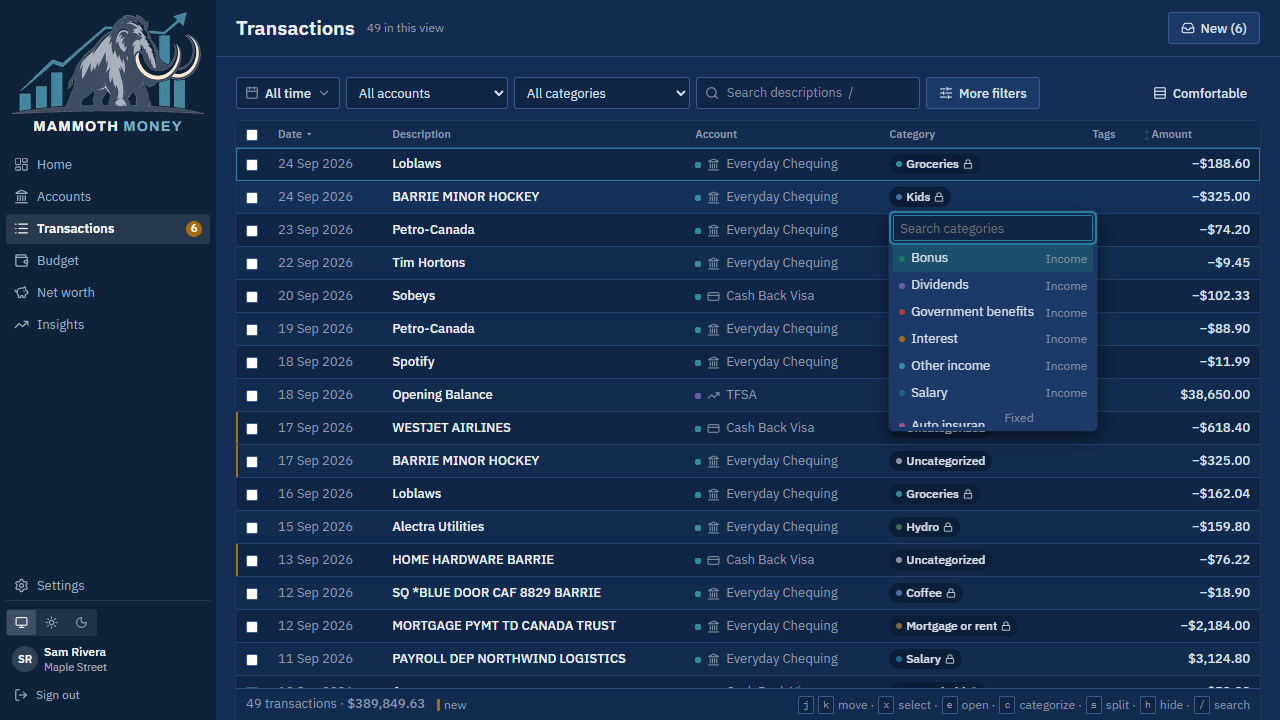
Start typing to narrow the list, then click the one you want.
If other transactions look like this one, a line appears above the list:
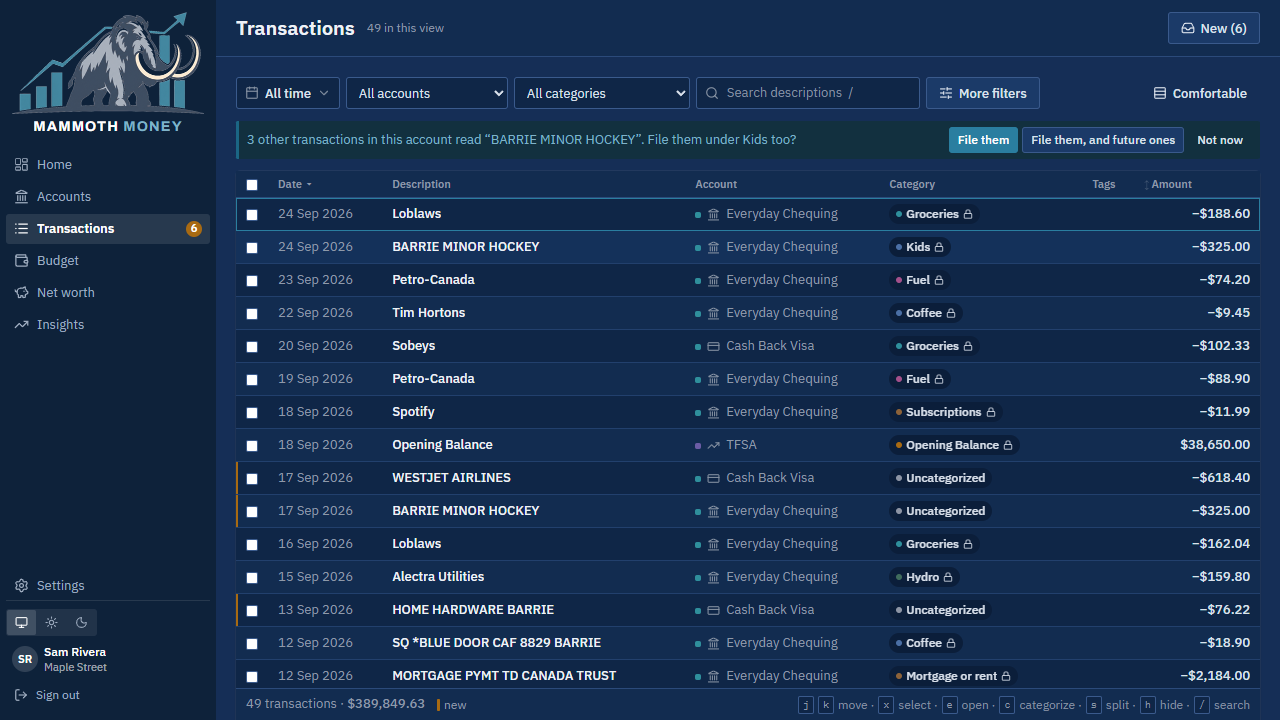
- File them — puts those transactions in the same category now.
- File them, and future ones — does that, and keeps doing it for uploads to come.
- Not now — leaves them alone.
Whatever you choose, Undo is offered afterwards.
If nothing is waiting but the app has never been told where this kind of transaction goes, it asks about the future instead:
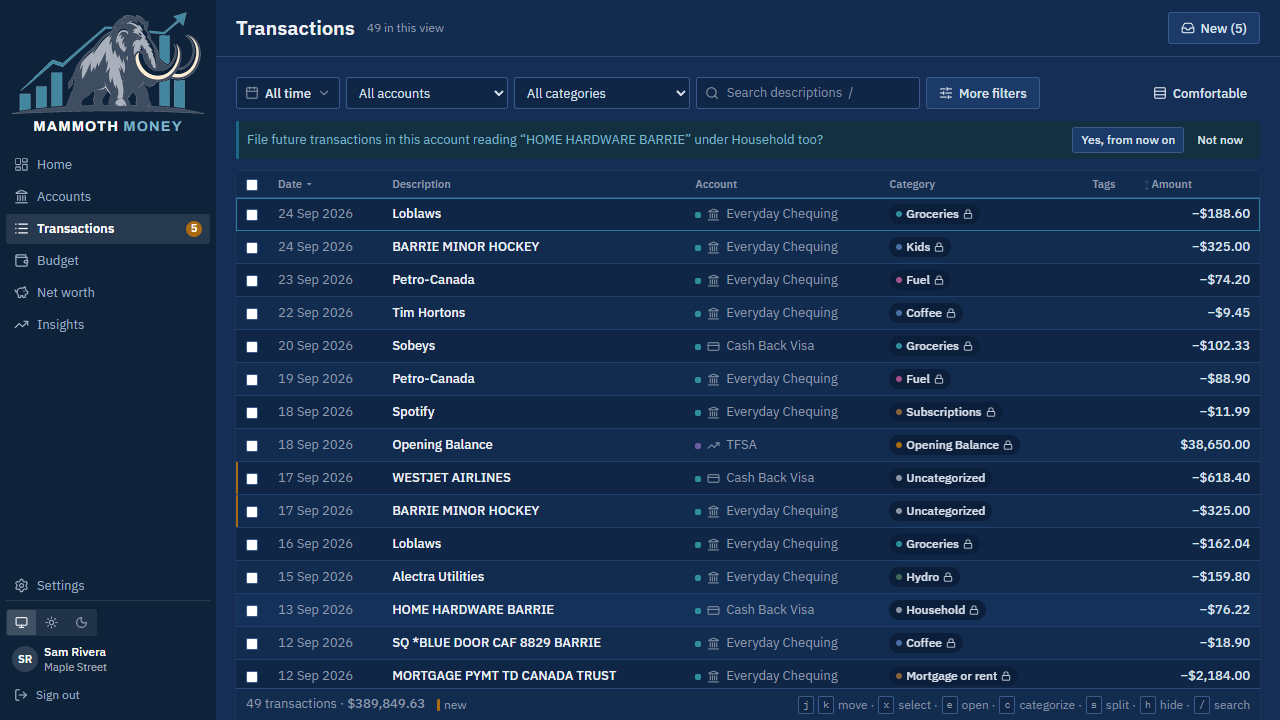
Then it says what it did, with a way back:
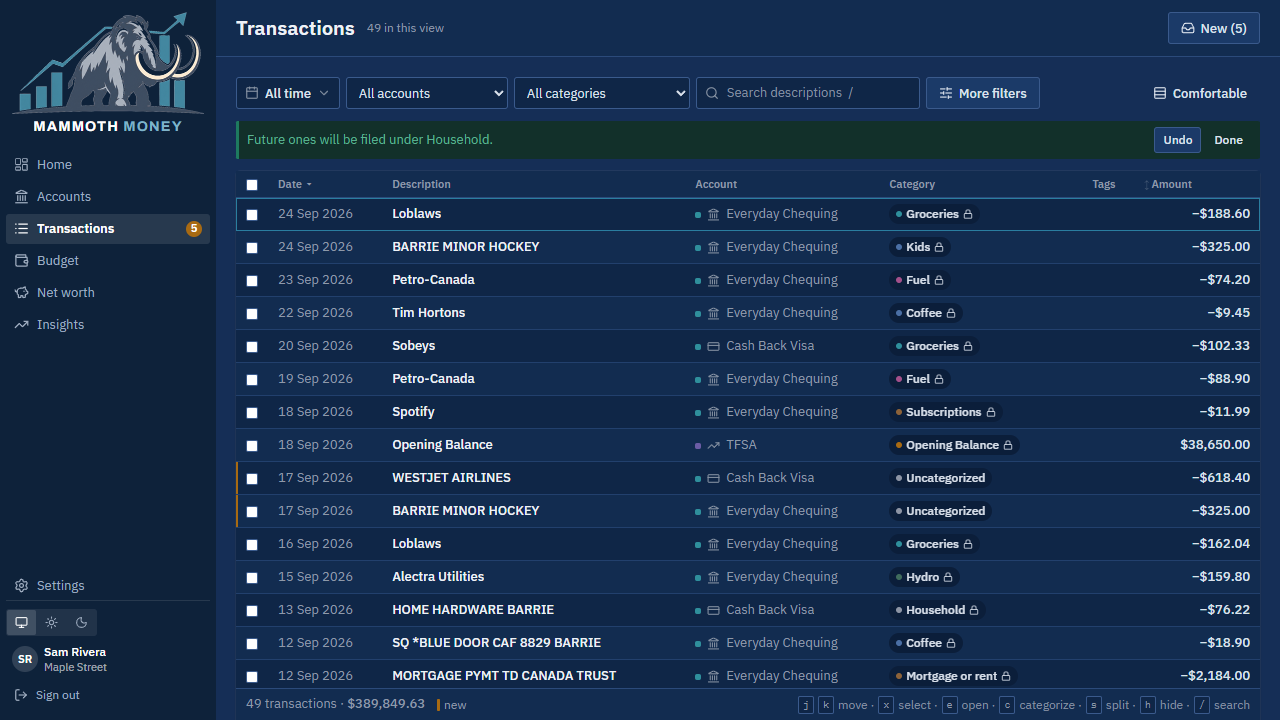
Tip: Nothing is filed behind your back. The app only ever offers.
How to: rename a transaction to something you recognise
Click the row to open it.
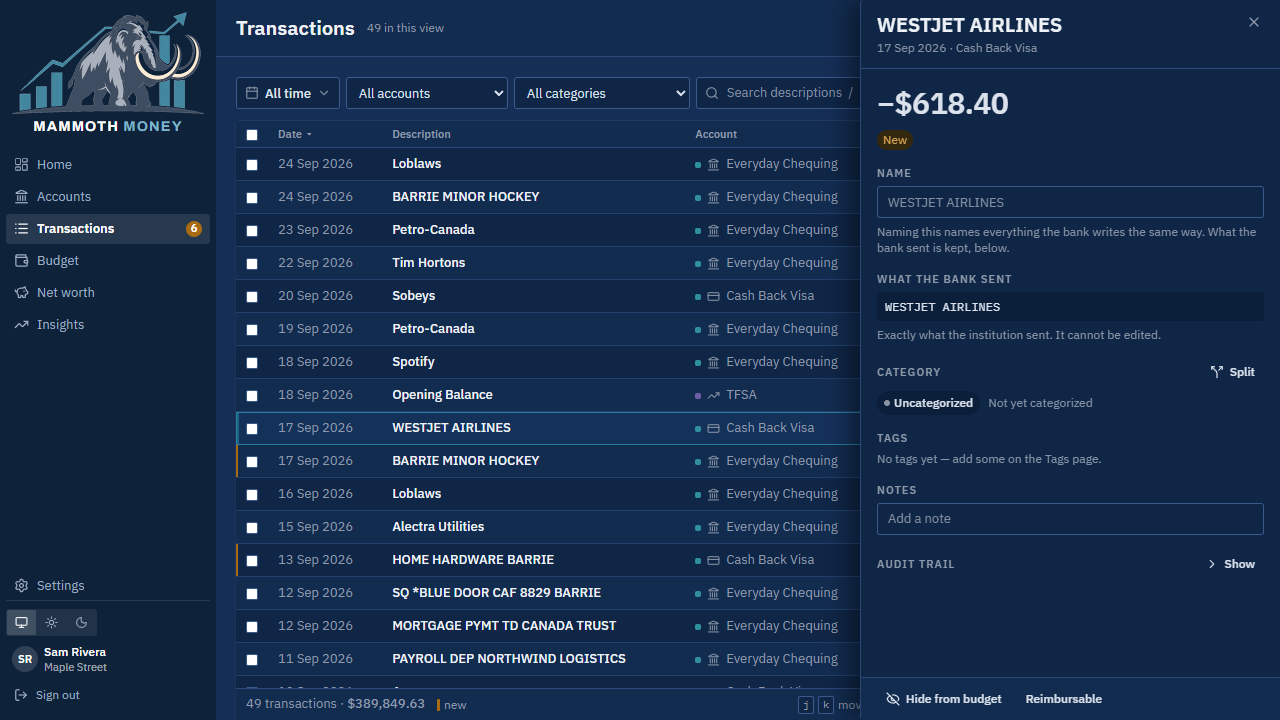
Type a name in Name — "WestJet" instead of
WESTJET AIRLINES.Every transaction the bank writes the same way takes that name too, before and after. What the bank sent is kept underneath and never changes.
Tip: Naming is how the app learns who a merchant is. Once named, that shop's transactions can be categorised together from then on.
Other things in the panel
- Split — divide one transaction across several categories.
- Tags — a second axis: a trip, a project, something you'll claim back.
- Notes — anything you want to remember about it.
- Hide from budget and Reimbursable — keep a transaction out of the month's spending.
- Audit trail — every change made to the row, and when.
- Not a transfer — appears beside the ⇄ Transfer badge when the app has paired this row with another. It breaks the pairing; the row goes back to New for you to file.
A mortgage payment already carries two lines, marked worked out from your loan terms — see A loan or a mortgage.
Doing several at once
Tick the boxes down the left and a bar appears at the bottom: give them all one category, or hide them all from the budget.
New
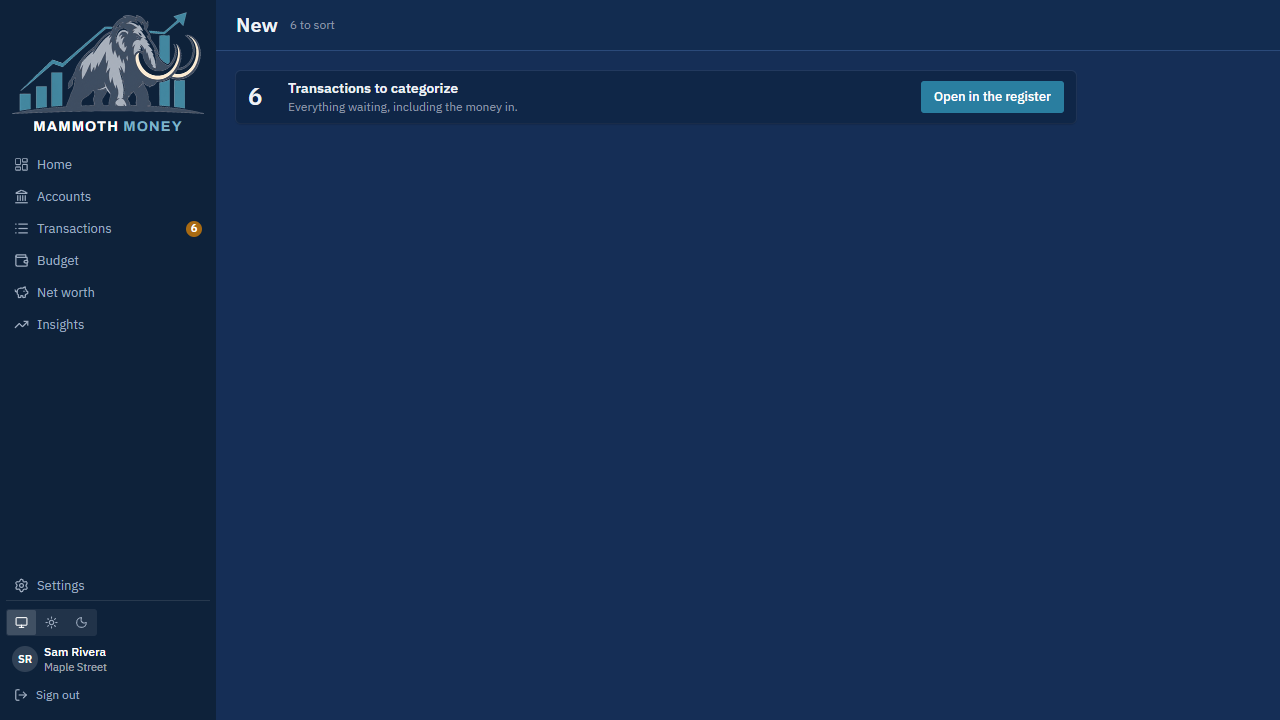
New is the short list of things waiting. When it is empty there is nothing to do — which is the point.
- Suggestions, at the top, if your household has turned on AI usage. See Letting AI help.
- Money in, not yet explained — deposits with no category. Explain them opens them in the register.
- Transactions to categorize — everything else waiting. Open in the register takes you there.
- An upload that was never finished — its rows are ready and none of them are in yet. Finish it.
- Possible transfers — money that looks like it moved between two of your own accounts. Confirm the pair, or categorise both sides in the register and it stops appearing.
Letting AI help
Two jobs in the app are hard without help: guessing what SQ *BLUEBIRD CO is, and reading a statement from a bank nobody has written a reader for. Both can be given to Claude, and neither happens unless your household asks for it.
Turning it on
Settings → Household → AI usage → Use AI in this household. It is off until somebody turns it on, and it says who did and when.
What goes, with it on: the wording your bank uses — never an amount, a date, an account name or number, or a note. Nothing is saved or categorised until you have checked it. What is sent, and who handles it says it at more length, and is readable without signing in.
Suggestions
On New, press Suggest names and categories. Claude reads the bank text nobody has sorted and proposes a name and a category for each.
They arrive grouped by the category proposed, biggest group first, because that is the shape of the decision: agreeing that twelve of these are Groceries is one press, not twelve.
- Accept one, or Accept all in a group. Each row's name and category can be corrected first.
- Skip sets one aside.
- Accepting says what it did — what was named, how many were filed — and offers Undo.
Accepting also sets that merchant's usual category, so future uploads follow. Nothing changes until you press Accept.
Reading a statement nobody has written a reader for
When a statement's layout is not one the app knows, and AI usage is on, the refusal offers Read it with AI.
Pressing it sends the statement's text — your name and address taken out, account numbers reduced to their last four. The PDF itself is never sent. Pressing the button is the decision; there is no second one to make.
What comes back is listed beside anything a reader found, ticked by nobody — a reading you have not looked at is not a reading you agreed to. You tick it and record it as you would any other.
A lender's statement is read this way too. A mortgage statement prints what is owed, not what is held, so it is checked differently: the opening principal less the principal repaid has to come to the closing principal. Only the three figures a lender actually prints satisfy that, so a figure read off the wrong line is thrown away rather than recorded — which is what stops a mortgage arriving as money in your pocket. What comes back is the balance owed, the year's principal and interest, and the terms the statement states.
The second one from that bank is read here. When a reading passes every check, the app keeps the words printed beside each figure — "Principal Balance Outstanding:", which occurrence of it on the page, which figure along that line — and reads next year's statement by finding those words again, on your device, with nothing leaving the browser. It earns no trust for having been learned: its figures go through the same checks a built-in reader's do, and a bank that rewords its statement produces "couldn't read this one" rather than a plausible wrong figure. One call, then never again for that bank.
A statement says which read it: Read by AI, or the institution's name followed by a layout learned here. Settings → Household → Layouts learned here lists them with the date each was learned, and Forget drops one — the next statement from that bank is then read with AI again.
A household may have twenty statements read this way in a month. Past that it will say so, and ask you to record the balance by hand or try next month.
Budget
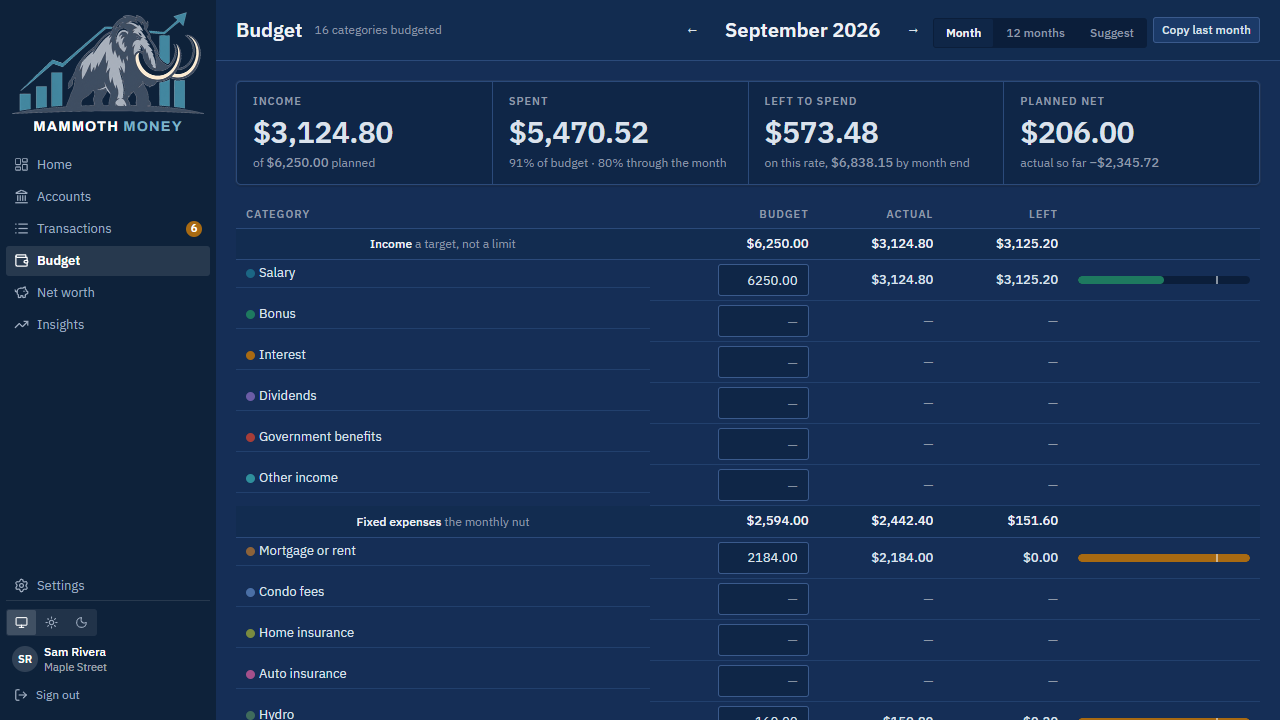
A plan for the month, category by category. Type an amount, and it saves as you go.
- Income · Spent · Left to spend · Planned net across the top, with how far through the month you are.
- Each row shows what you planned, what has happened, and what is left, with a bar that turns amber and then red as it fills.
- Copy last month brings the whole plan forward, leaving anything you have already set alone.
- Suggest fills amounts from what you actually spent over recent months.
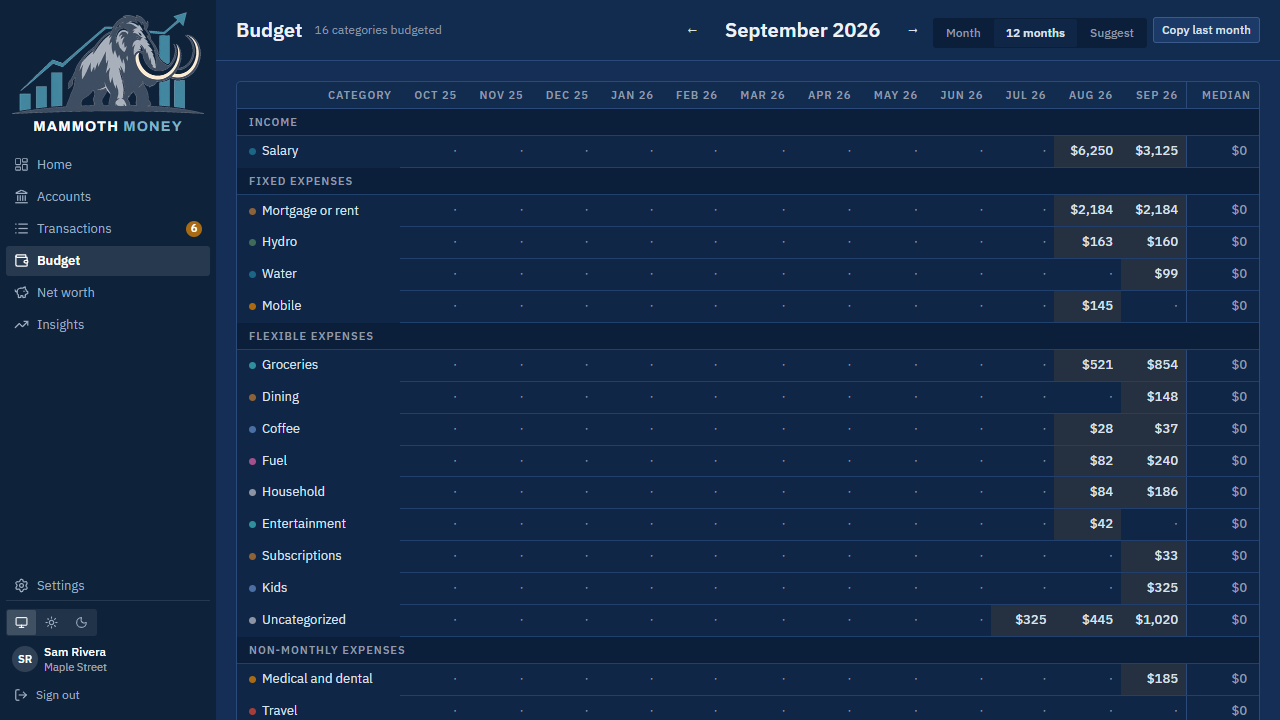
12 months shows the year at a glance, so you can see which categories are steady and which ones swing.
Tip: Nothing closes a month. Last month stays editable, and money left over does not become next month's allowance.
Net worth
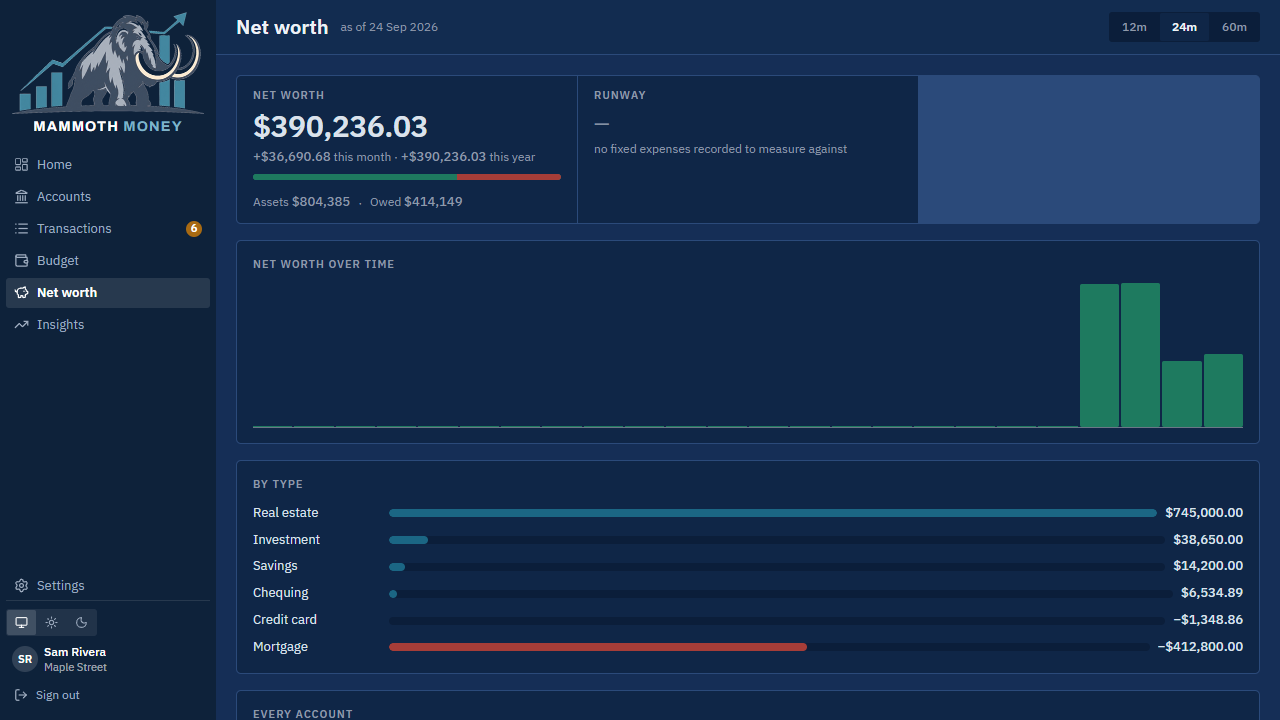
Everything owned, minus everything owed, with the trend over time and a breakdown by kind of account. More detail opens every account, with the date each figure was observed, so you can see what the total rests on.
Underneath, every loan with terms entered gets a panel of its own — see below. Any loan without terms is named there too, under a heading that counts them, with what it owes and a link to the account: a payoff date and an interest split are worked out from a rate and a payment, and a loan with neither cannot have them. What it owes is counted in the totals either way.
Something you own with somebody else
A house held with a partner is worth $800,000 and your share of it is $400,000. A joint account is the same question in a smaller way.
On the account, under More options, tick Owned with someone else and give your share as a percentage.
What changes. Every figure that says what you are worth counts your share: net worth and its history, the totals by kind of account, the after-tax figure, and the balance shown on the accounts list, on Net worth and at the top of the account. Where a figure is a share, the line under it says so — 50% of $800,000.00 — so the two numbers never read as a disagreement.
What does not. Everything your bank said stays whole: the balances you have recorded, the statements, and the check between the two. A difference of $250 is a difference of $250, not half of one, because you are checking it against a statement that says the whole figure.
A loan is projected whole as well. A $400,000 mortgage amortises as $400,000 whoever owns it, so the payoff date, the interest in each payment and what paying more would save are unchanged; only what it takes off your net worth is your share.
Spending is not shared. A $100 charge on a joint account is $100 you spent. The share is about who owns the balance, not who spent — and where half an expense really is somebody else's, mark the transaction reimbursable instead.
A share of 0% is allowed. It counts nothing toward your net worth while keeping the account, its history and its uploads — for something you track but do not own.
A loan or a mortgage
A balance tells you what you owe. It cannot tell you when the loan ends, how much of this month's payment the lender keeps, or what another two hundred a month would buy. Those come from the loan's terms.
How to: tell the app about a loan
On the account, open Account setup → Loan terms, and give it what was borrowed, the rate, whether that rate is fixed or variable, the payment, how often you pay, and the date of the first payment.
A variable rate is held as a history rather than as one number: when your lender moves it, add the new rate with the date it moved, and every payment is split at whatever was in force on its own day.
If you have a statement from the lender, you do not need to type any of it: record the statement and the terms printed on it are taken from it. Either way the loan is set up, and the account's Loan terms shows where each set of terms came from — A statement or Entered by hand.
How to: say which payments are the loan's
A household already files its mortgage payments somewhere. Under Loan terms, choose that category under Which category do this loan's payments carry?
Every payment filed there is then split by the amount you actually paid — which matters, because almost nobody pays the contractual figure every time. Accelerate for a few years while the rate is low, ease off before a renewal, and not one payment equals the number on the paperwork. The app follows what you paid, not what you agreed to pay.
The splitting starts the moment you choose the category — and so does Remove, beside it, which stops the splitting and puts every payment it split back under that category as one line again. Naming the wrong category is a mistake worth being able to undo.
Leave it unset and nothing is split. Guessing which withdrawals are a mortgage's, when you have not said, is how an unrelated transfer ends up carrying somebody's interest.
If a payment lands somewhere else, open it and file it under the loan's category: it splits there and then, the same as one that arrived already filed.
What the split does
The payment stays one transaction out of your chequing account, and carries two lines:
- Mortgage interest — what the lender kept. This is spending, and it counts in your budget and your totals.
- Mortgage principal — what came off the debt. This is a transfer: money moved to an account you owe, not money spent.
Both are marked worked out from your loan terms. Editing one by hand takes it out of the app's reach — it stops being recalculated when the lender's figures arrive.
Expect your spending to rise the first time this happens. Interest that was sitting in a transfer category, counting as nothing, is now spending — because it always was.
The payment is not paired as a transfer, deliberately. A paired transaction leaves spending entirely, and the interest half of a mortgage payment is the one thing here worth seeing — so the app never offers a loan's payment as a possible transfer.
If one was paired before you named the category, it will carry a ⇄ Transfer badge and will not split. Open it and press Not a transfer: the pairing goes and the payment splits.
What the lender settles, and what is a guess
Between letters, the interest on each payment is the app's arithmetic. When a statement arrives saying what the year actually cost, that year is settled to the cent: the difference is spread across that year's payments in proportion, so no single month carries the correction. Everything after the last statement stays an estimate, and Loan terms says so — Your lender has confirmed the interest up to 31 Dec 2025.
A year is only settled when the app has all of its payments. If what you have does not come to what the lender received, some are missing, and scaling an incomplete set would push the missing interest onto the payments that are here.
The app also records what the loan was worth after each payment, so an account written to once a year does not read as out of date for the other eleven months.
A loan you do not make the payments from
A property owned with somebody else, where they pay the mortgage, reaches the app only as the lender's annual letter. There are no payments to split, so:
- record the statement, and nothing else. It carries the balance owed, the year's principal and interest, and the terms.
- do not name a payment category. There is nothing of yours for it to match, and naming one risks splitting a withdrawal that has nothing to do with it.
The account will not read as out of date between letters — the statement's own period says when the next one is due.
When a term runs out
A mortgage renews. Once a term has matured, Loan terms asks for the new ones: This term ended on 1 Mar 2026 and nothing has been entered since. Payments after that date are still being split, at the old terms, which is probably wrong. Enter the new terms, or record the statement that states them.
On Net worth
Each loan gets a panel: what is owing, the payment and how often, the rate and how it compounds, the date it is paid off, and the interest still to come.
Underneath is the fact a payment schedule usually hides — the next payment is $1,017.40 interest and $382.60 principal — 73% of it goes to the lender — and a box to try an extra payment against: What would that save? answers in interest saved and payments removed.
Insights
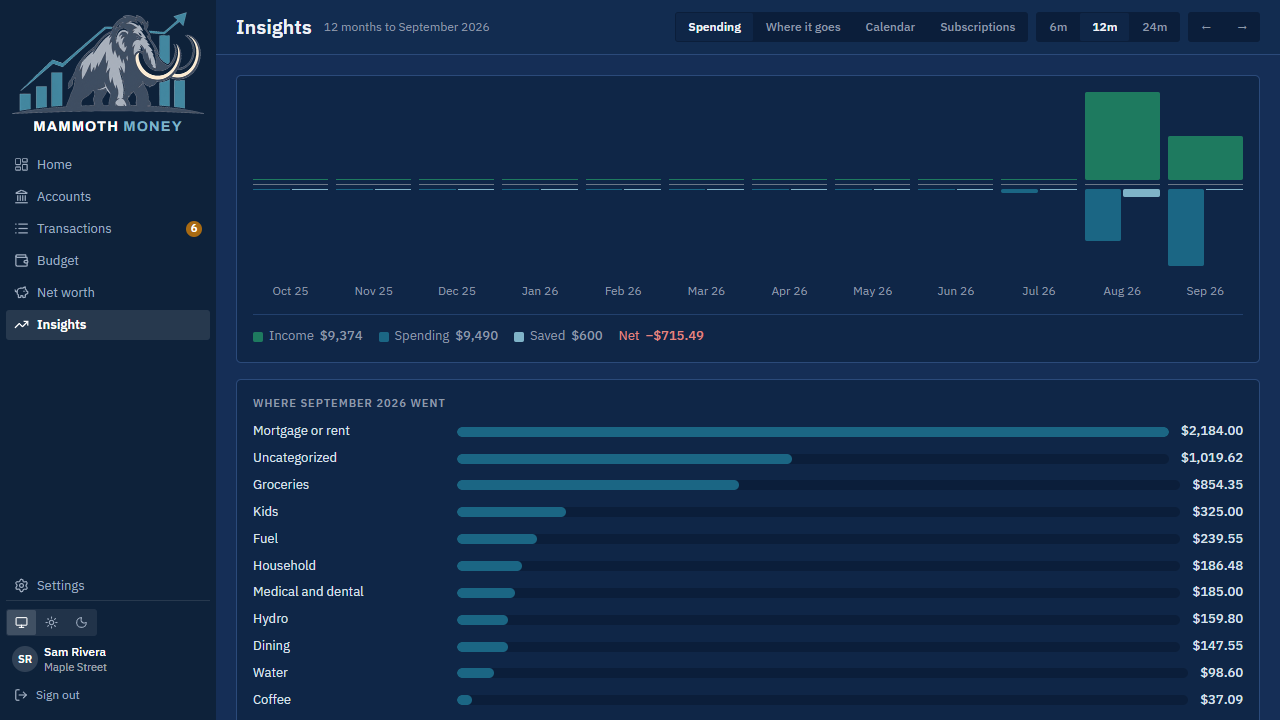
Four views over 6, 12 or 24 months:
| Tab | What it answers |
|---|---|
| Spending | Income against spending, month by month, and where this month went. |
| Where it goes | Which categories and merchants take the money, over time. |
| Calendar | Which days money moves — useful for spotting the monthly bills. |
| Subscriptions | What is charged regularly, what it adds up to in a year, and anything whose price changed — see below. |
Subscriptions and standing charges
Three charges at a regular interval is the least the app can tell a subscription from a coincidence. Press Find subscriptions and anything charging on a cadence is proposed, with what it costs a year beside what it costs each time — because $14.99 a month is $180 a year, and the second number is the one that gets a decision made.
Everything arrives as a proposal, and you decide:
- Yes — it is a subscription, and the rest of the app can rely on that.
- Not a subscription — it never was one. A supermarket you happen to visit fortnightly, a transfer that looks like a bill. It comes off the list and is not proposed again.
- Once confirmed, the dropdown also offers Paused, Not using it and Cancelled. Cancelled is for a subscription that was real and has ended — which is why the app keeps watching it: a charge arriving after you cancelled is exactly what you want to see.
The list shows what is still standing. If anything has been cancelled or dismissed, a checkbox underneath offers to show those too — useful if you dismissed the wrong thing, since the dropdown there can put it back.
Worth looking at
A short list above the table, for the things that are worth a sentence:
- A price that went up, against what the series usually costs rather than against last month, so a bill that alternates does not raise a flag every month.
- A charge that has not arrived in two months. Not two weeks: a bill that is a fortnight late is ordinary, and a list that says so every time is a list nobody reads. Two months of silence is usually a payment that failed.
The app will not say a charge is missing on an account you have not updated past the day it was due. There the file is what is missing, not the payment.
What they have changed over time
Underneath, the charges whose price has not moved in two years or more, and what they come to a month. A charge nobody has revisited since it started is the one worth revisiting — nothing has ever prompted a look at it.
Settings
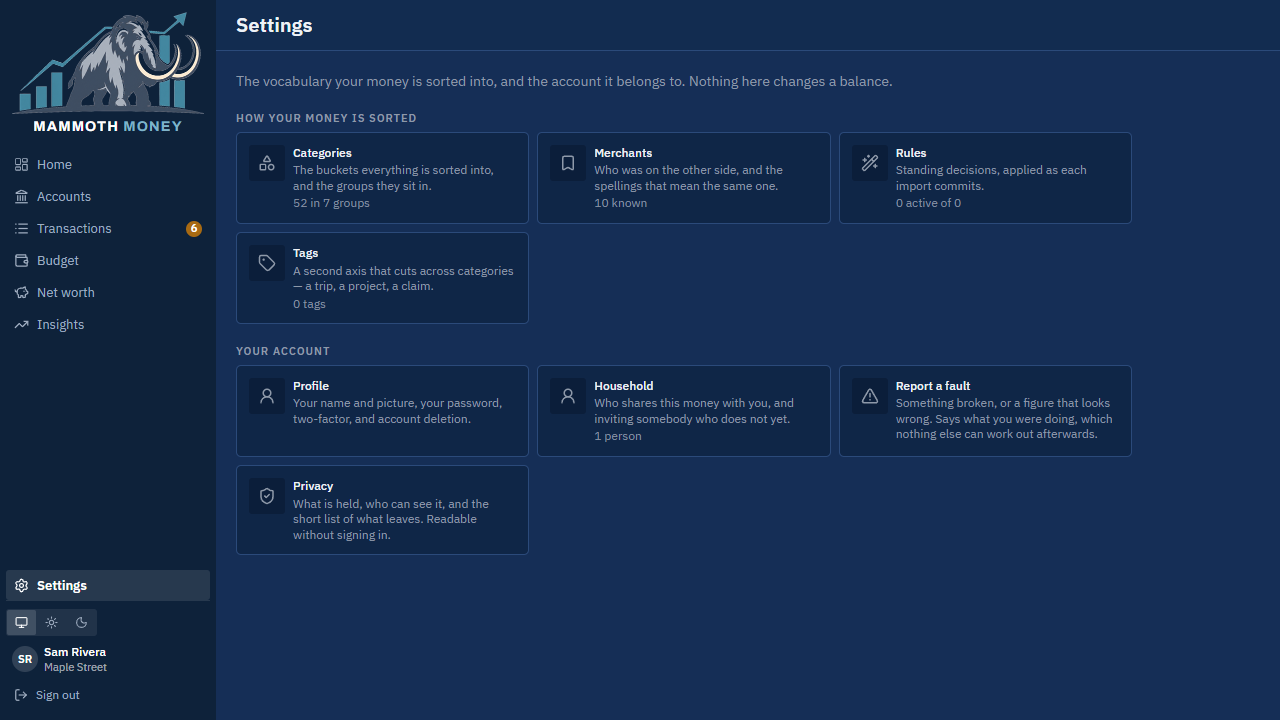
How your money is sorted
Categories — the buckets everything is sorted into, in groups. Rename, add, archive, or merge two that mean the same thing.
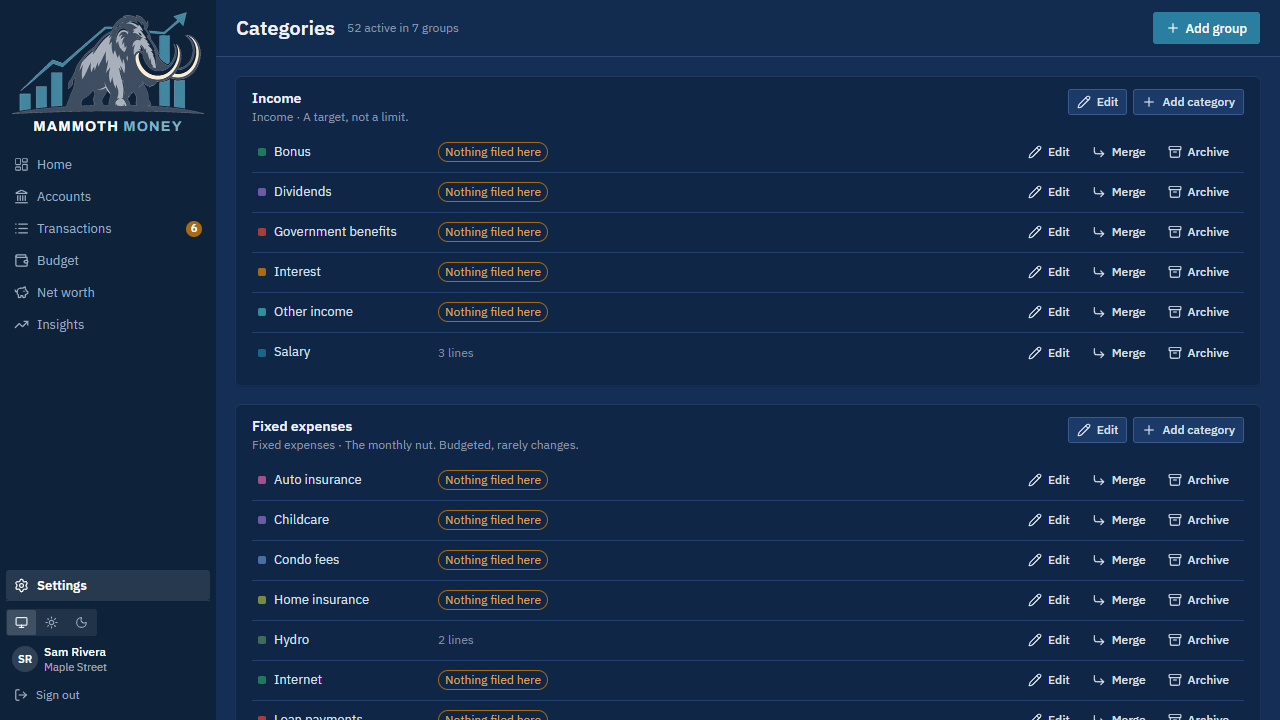
A few belong to the app and cannot be removed: Transfer, Credit card payment, Starting balance, Mortgage interest and Mortgage principal among them. The Left out of totals group is for money that is neither spending nor income nor a transfer — a starting balance, an adjustment. Nothing in it counts in any total and nothing in it is budgeted.
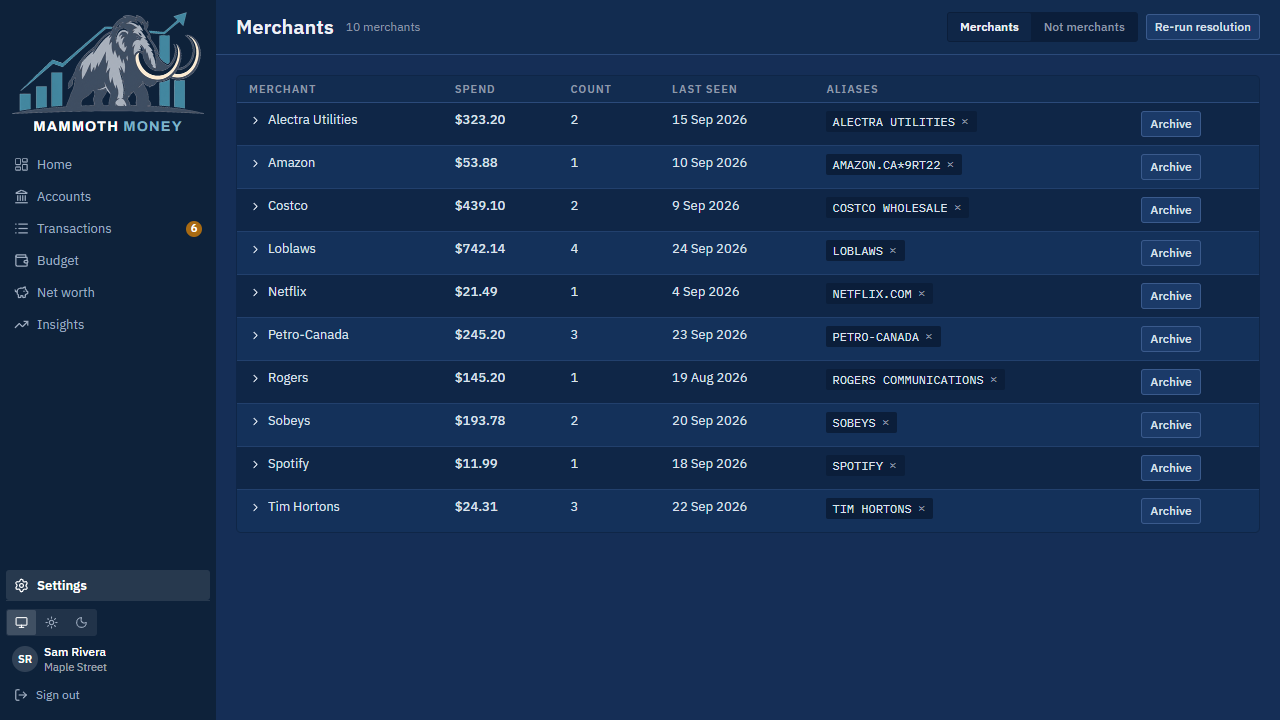
Merchants — who was on the other side, and the spellings that mean the same one. You can set a merchant's usual category here, which is what "file future ones too" sets for you.
Rules — standing decisions applied as each upload lands: if the description contains this, use that category or that name.
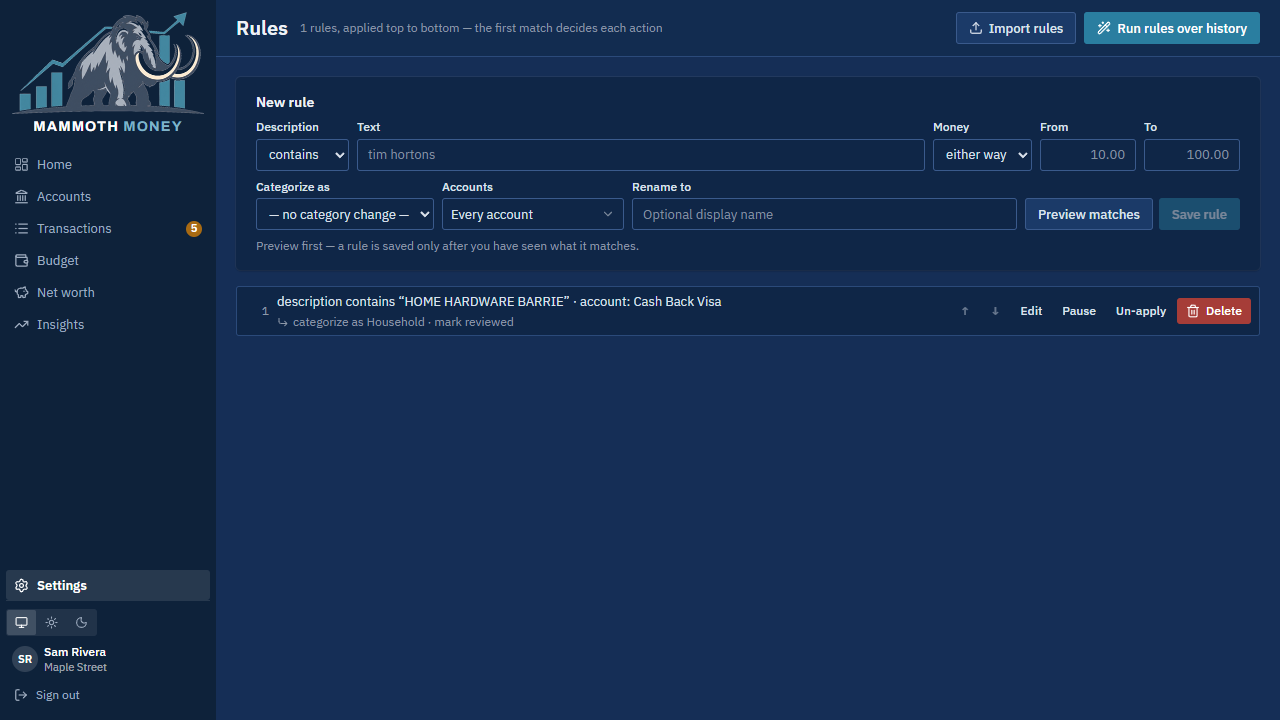
Saying "and future ones" when you categorise writes one of these for you — the rule in the picture was made that way. To write one by hand, fill in the top row, press Preview matches to see what it would catch, then Save rule, which also applies it to transactions already here. Run rules over history applies every rule to everything; Un-apply takes one rule's work back.
Tags — the second axis that cuts across categories.
Your account
Profile — your name and picture, your email address, password, two-factor, and deleting your account.
Changing your email asks for your password, and then takes two links: one to the address you have now, approving the change, and a second to the new address, proving you can read it. Nothing moves until both are followed — so your account cannot be moved to an address you cannot read, even by somebody who has your password.
If the address you ask for already has an account of its own, the app says so in that first email rather than on the screen. On screen the two cases look identical on purpose: otherwise anybody signed in could type addresses one at a time and learn which of them have accounts.
Changing your password signs out every other device. That is deliberate: the usual reason to change one is that somebody else may have it.
Household — who shares this money with you, inviting somebody who doesn't yet, and AI usage. Everyone in a household sees everything in it.
Report a fault — something broken or a figure that looks wrong. It records what you were doing, which nothing else can work out afterwards.
Privacy — what is held, who can see it, and the short list of what leaves. Readable without signing in.
When the numbers disagree
The app checks your transactions against your bank's own balance on the day that balance is from. Four things can show up.
"the transactions come to $X less than your bank's balance"
Something is missing or counted twice. In order of likelihood:
- A file was skipped as a duplicate when it wasn't one. Open the upload on the account page and look at what it skipped — Bring it back puts it right.
- A file is missing. Check the account's uploads for a gap in the dates covered, and bring in the missing file.
- A transaction was entered by hand as well as uploaded. Delete the hand-entered one.
"out of date"
Nothing has covered the account recently: thirty days for an account you upload to, or a statement that should have arrived by now for one kept by its statements. Download a new file or statement from that bank.
A dash under Balance check
Nothing to compare. Everything the account holds came from a statement, and a statement states its own balance — there is no second figure to disagree with it.
An account with nothing in it
It was added but never brought into. Either bring in a file, or give it a balance under Account setup if it is something like a house that has no statements.
Keyboard shortcuts
On the transactions list:
| Key | What it does |
|---|---|
j / k (or arrows) |
Move down / up |
e or Enter |
Open the transaction |
c |
Categorise it |
s |
Split it |
x |
Select it (for doing several at once) |
h |
Hide it from the budget |
/ |
Jump to search |
Esc |
Close the panel, or leave the field you're typing in |
The words the app uses
| Word | What it means here |
|---|---|
| Upload | Giving the app a file of transactions from your bank. |
| Statement | A document from your bank saying what an account held, and why it changed, over a period. Read on your device; the file is never sent. |
| New | Transactions waiting for a category, and transfers the app is unsure about. |
| Out of date | This account has gone longer without a balance than it is expected to. What it is expected to is the account's own Expect a new balance, or, where it is kept by statements, the period its statements cover. |
| Starting balance | Where an account's history begins. Set once, from the first figure the bank gave. |
| Difference | Your bank's balance and the transactions disagree on a date. |
| Others like this | Undecided transactions matching one you just categorised — the same merchant, or the same bank text in the same account. |
| Merchant | Who was on the other side of a transaction. Naming a transaction is what creates one. |
| Rule | A standing instruction to name or categorise matching transactions automatically. |
| Suggestion | A name and category the app proposes for bank text nobody has sorted. It changes nothing until you accept it. |
| AI usage | Your household's switch for whether anything may be sent to be read. Off until somebody turns it on. |
| Transfer | Money moved between two of your own accounts. Neither spending nor income. |
| Split | One transaction divided across more than one category. |
| Left out of totals | Categories for money that is neither spending, income nor a transfer. They count in no total and are never budgeted. |
| Loan terms | What was borrowed and on what terms. What produces a payoff date and the interest inside each payment. |
| Payment category | The category you file a loan's payments under. Naming it is how the app knows which withdrawals to split. |
| Worked out from your loan terms | A line the app calculated rather than one you chose. Editing it stops the app recalculating it. |
| Fixed or variable | Whether a loan's rate is the one agreed for the term or one that moves with the lender's. A rate that moves is recorded as a new set of terms on the day it moved. |
| Not a transfer | Breaks a pairing the app made between two transactions. The row goes back to New for you to file. |
| Your share | How much of an account you own, where you own it with somebody else. Every figure that says what you are worth counts your share; what your bank said stays whole. |
| Not a subscription | Something the app proposed that never was one. It comes off the list and is not proposed again — different from Cancelled, which is a real subscription that has ended and is still worth watching. |
| A layout learned here | The words beside the figures on one bank's statement, kept the first time AI read one. Every later statement from that bank is read on your device. |
Written from the app as it stands on 3 October 2026. If a screen here doesn't match what you see, the app has moved on — tell Paul, or use Report a fault from Settings.